 44be3349e2
|
||
|---|---|---|
| .design | ||
| .github/workflows | ||
| .vscode | ||
| figs | ||
| src/themes | ||
| tools | ||
| .cocorc | ||
| .eslintrc.json | ||
| .gitignore | ||
| .prettierignore | ||
| .prettierrc | ||
| CHANGELOG.md | ||
| LICENSE | ||
| README.md | ||
| package-lock.json | ||
| package.json | ||
| 🍵 lugit-theme.code-workspace | ||
README.md
lucaslabs › Gitea theme
Theme for lucaslabs internal gitea server.
dark
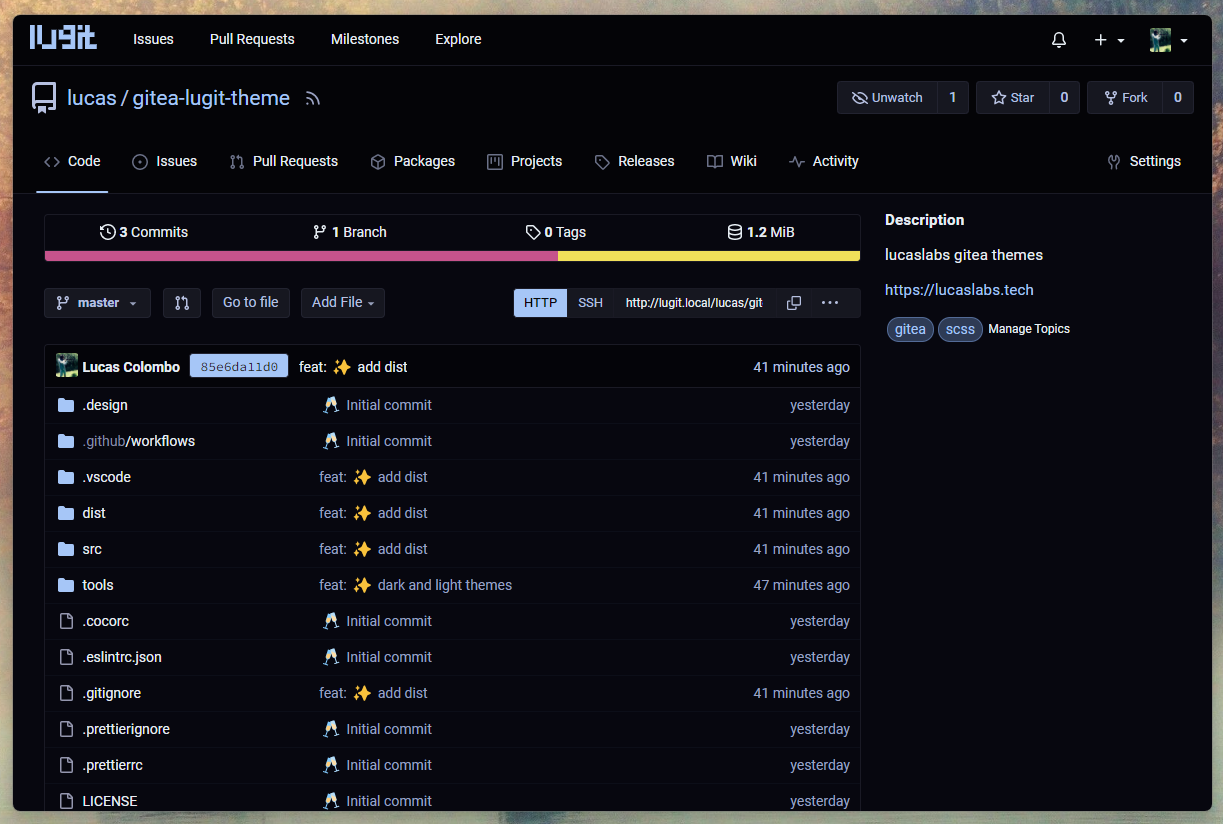
light

auto
Switches between dark and light automatically based on the user's system preference.
Usage
- Go to the releases page and get the latest
gitea-lugit-theme.tar.gzrelease file. - Place the
templatesandpublicfolder in your$GITEA_CUSTOMdirectory. - Append the themes in your
app.inifile:
[ui]
THEMES=...,dark,light,auto
DEFAULT_THEME=dark # optional
💡 You can change the names of the themes by changing the name of the theme files in
public/css/theme-{name}.cssand in theapp.inifile, accordingly.
- Restart
gitea.
[!NOTE] The latest version works with
giteaversionv1.22.x.
Credits
catppuccin/gitea, these themes are based on them.
Development
build
$ npm install
$ npm run build
serve
$ npm run serve -- --server path/to/gitea/custom

# e.g.

# on linux
$ npm run serve -- --server ~/gitea/custom
# on windows
$ npm run serve -- -- --server c:/gitea/custom
Changes in templates
home.tmpl
Here we remove everything (default gitea welcome page). We only keep the logo and the header with the login button.
base/head_navbar.tmpl
The only change here is to make the logo smaller.
- <img height="30" width="30" src="{{AssetUrlPrefix}}/img/logo.svg" alt="{{ctx.Locale.Tr "logo"}}" aria-hidden="true">
+ <img height="24" src="{{AssetUrlPrefix}}/img/logo.svg" alt="{{ctx.Locale.Tr "logo"}}" aria-hidden="true">
repo/home.tmpl
- adds
<div class="lugit-repo-header-data">...</div>as a wrapper for the repo header data (description + labels) - adds
<div class="lugit-repo-content">as a wrapper for the repo content (files, commits, branches, etc.)
Later we use css to go from default 1 column layout to 2 column layout more similar to github's design.
- <div class="ui container {{if .IsBlame}}fluid padded{{end}}>
+ <div class="ui container {{if .IsBlame}}fluid padded{{end}} {{if and (not .IIsViewFile) (not .IsBlame)}}lugit-repo-list-view{{end}}">
Adds the class lugit-repo-list-view to the container of the repo content (only when we are not viewing a file or in blame view). This allows us to change the layout of the main repo view, except when viewing a file or in blame view.